Accessibility is a session design choice
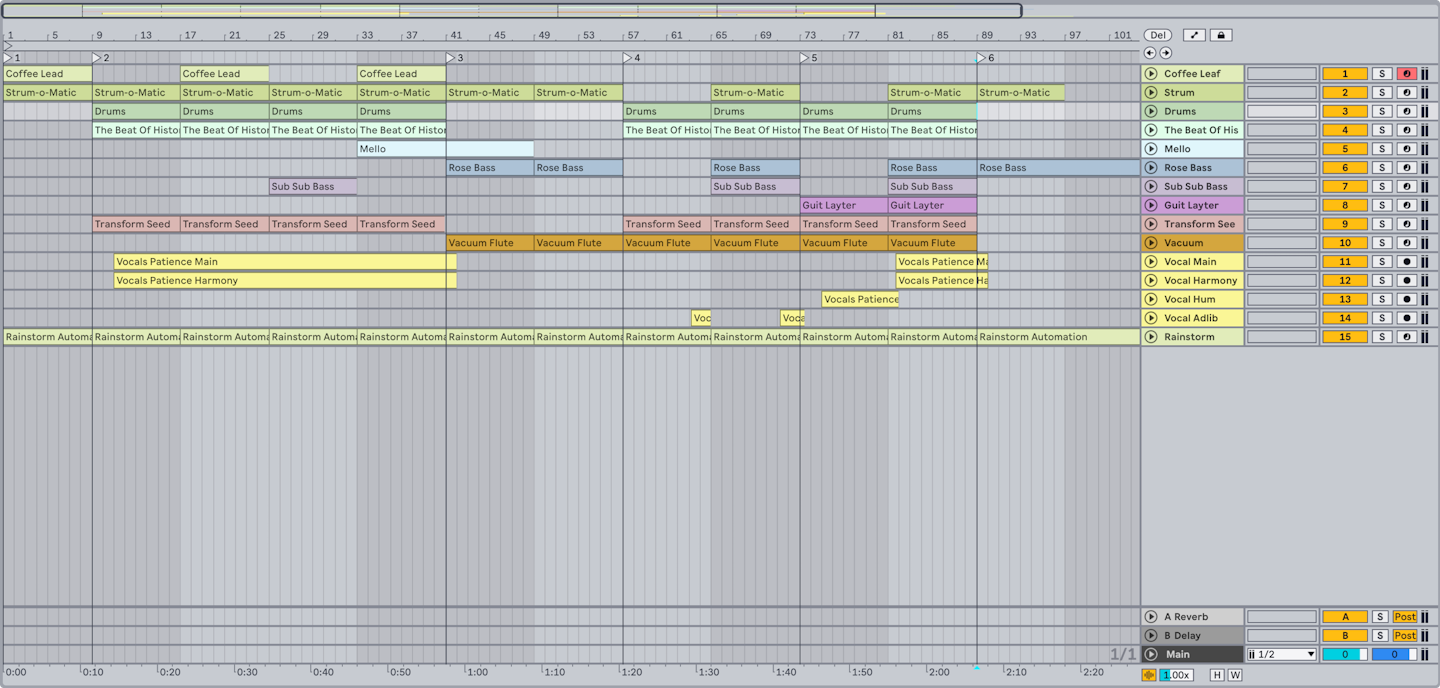
An accessible workflow is not a special export made at the end. It begins with stable track names, predictable order, meaningful colours where useful, keyboard-reachable actions, and notes another musician can navigate without interpreting a dense screen. Name tracks by role and state: 01 Kick, 02 Bass DI, 10 Lead vocal comp, 20 FX return. Avoid ten identically named audio tracks and unnamed racks. A screen reader can announce a name; it cannot infer what ‘Audio 17’ was meant to do.
Ableton’s Live 12 accessibility documentation says the software supports screen readers and native assistive-technology protocols on macOS and Windows, along with keyboard navigation and high-contrast themes. It also names limitations. That candour matters: build around the documented core workflows, and do not promise a collaborator that every third-party plug-in, advanced device view, or visual meter will be equally accessible.
Make the keyboard path obvious
Choose a small repeatable route: create track, arm, record, stop, rename, save, and export a reference. Document the exact shortcuts for the operating system and DAW version in a session readme; do not assume another person’s key commands match yours. In Live, Ableton recommends enabling Tab navigation options and describes Enter for buttons and Space for transport. Test the route in a blank set before recording a client or collaborator.
Keep critical decisions in text as well as in interface state. The readme should name tempo, key, sample rate, project start point, current reference bounce, and required hardware or plug-ins. For a keyboard-first collaborator, a one-page change note is more useful than a screenshot of mixer settings.
Design around the limits you know
Use native devices where they meet the creative need, because their controls are more likely to have documented accessibility support than an unknown plug-in. If a visual task remains necessary—fine waveform surgery, spectral repair, or a third-party parameter panel—describe it narrowly and agree on a handoff rather than treating it as a personal failure. A practical team can split an inaccessible visual microtask from the musical decisions that do not require it.
Ableton’s manual lists several areas that are not fully optimized for screen readers, including some device features, automation editing, and some third-party plug-ins. Record those constraints in the project plan. An honest limitation lets the session offer a usable alternative: a printed audio pass, MIDI notes, a written automation target, or a short collaboration check-in.
Exercise: navigate your own template without the mouse
Make a ten-minute template session with five named tracks, a return, a locator structure, and a readme. Use only keyboard navigation and your usual assistive technology to arm a track, record eight bars, rename the take, save a version, and export a reference. Note the first point where the workflow becomes unclear, then change the template—not the person using it. The payoff is a session that communicates its structure and makes more of the music-making route available to everyone.
Continue in Session craft, or Live 12 put MIDI generators and a neural sound search in the browser.
Evidence & further reading
Go to the source.
Primary references checked 19 September 2026. Practical exercises are editorial guidance, not reported product tests.
- Accessibility Options in Live ↗
Live 12 documents screen-reader support, keyboard navigation, high-contrast options, and limits.
Ableton · Accessed 2026-09-19 - Accessibility in Live Overview ↗
Ableton documents tested screen readers, keyboard setup, and Accessibility-menu options.
Ableton · Accessed 2026-09-19 - Live 12 Release Notes ↗
Release notes describe ongoing accessibility improvements and supported core workflows.
Ableton · Accessed 2026-09-19